Building the STM32Cube environment
It should have been straightforward, but it wasn’t. It took me some time to get all the tools ready for coding and debugging. In part, it was because the STM32 software kit is large, the official documentation assumes you are already familiar with it, the naming and versioning ST uses don’t follow good practices, and because I use Slackware Linux on my computer, I had to build some packages myself. Well, I managed to build the basic tool set, and in the process, I got a deeper understanding of who is who in the toolchain.
The software package
The figure below shows an overview of the SMT32Cube toolchain. At this point, I don’t need to use most of them. I will discuss the items inside a red box; they are: STM32CubeMX, STM32CubeIDE, and STM32CubeProgrammer. Well, that’s not the complete story; we’ll need a couple of extra programs to complete the toolbox.
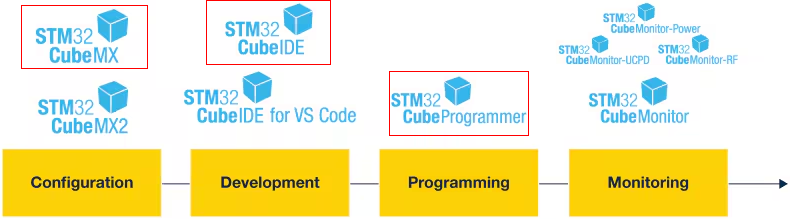 Figure 1. Software pool in the SMT32Cube toolchain. Red boxes show programs used in this post.
In theory, for starting programming and debugging, we only need these programs:
- STM32CubeMX: Used to build a new project, graphically configure the hardware, and create the basic code that implements the configuration.
- STM32CubeIDE: Provides the code editor, programming tools, and debugger.
- STM32CubeProgrammer: Gives you access to directly program the binaries into the microcontroller, see and modify registers and memory.
In reality, I needed to install additional software.
- STSW-LINK007: This is the firmware upgrade application for ST-LINK. It also provides the udev rules for the ST-Link USB programmers.
- stlink-server: Connects the debug interface in the ST-LINK programmer with the host application.
You can find the slackbuilds for STM32CubeIDE and STM32CubeProgrammer in slackbuilds.org, but not for STM32CubeMX, STSW-LINK007 and stlink-server. Those I had to package myself.
STM32CubeMX
At this point, I’m not sure if it is completely necessary. In other microcontrollers, the configuration is made directly in the code. But it helps simplify the process, and many of the tutorials you find online start by creating projects in STM32CubeMX.
Another advantage is that it allows downloading and installing additional software and drivers for a specific microcontroller or development board.
STM32CubeProgrammer
This is a standalone program that allows you to write a binary to the microcontroller and perform many common low-level tasks, such as erasing, reading, writing, and checking memory, setting security options, etc.
STSW-LINK007
This program updates the firmware of the ST-Link programmer. In my case, the one integrated on the dev board. It checks automatically for updates and downloads them from the ST site. Notice that STM32CubeIDE includes it (Help > ST-LINK Upgrade), so it is not necessary to download it if you use that IDE.
ST-Link-server
The idea is that this server allows multiple hosts or applications to connect, debug, and monitor a single board. Figure 2 shows how the ST-Link server participates in the host-board connection. It is still obscure to me, especially after the problems I had with STM32CubeIDE. Apparently, it is also possible to skip the server and connect directly to the probe via USB. I guess it’s the way STM32CubeProgrammer and STSW-LINK007 do it.
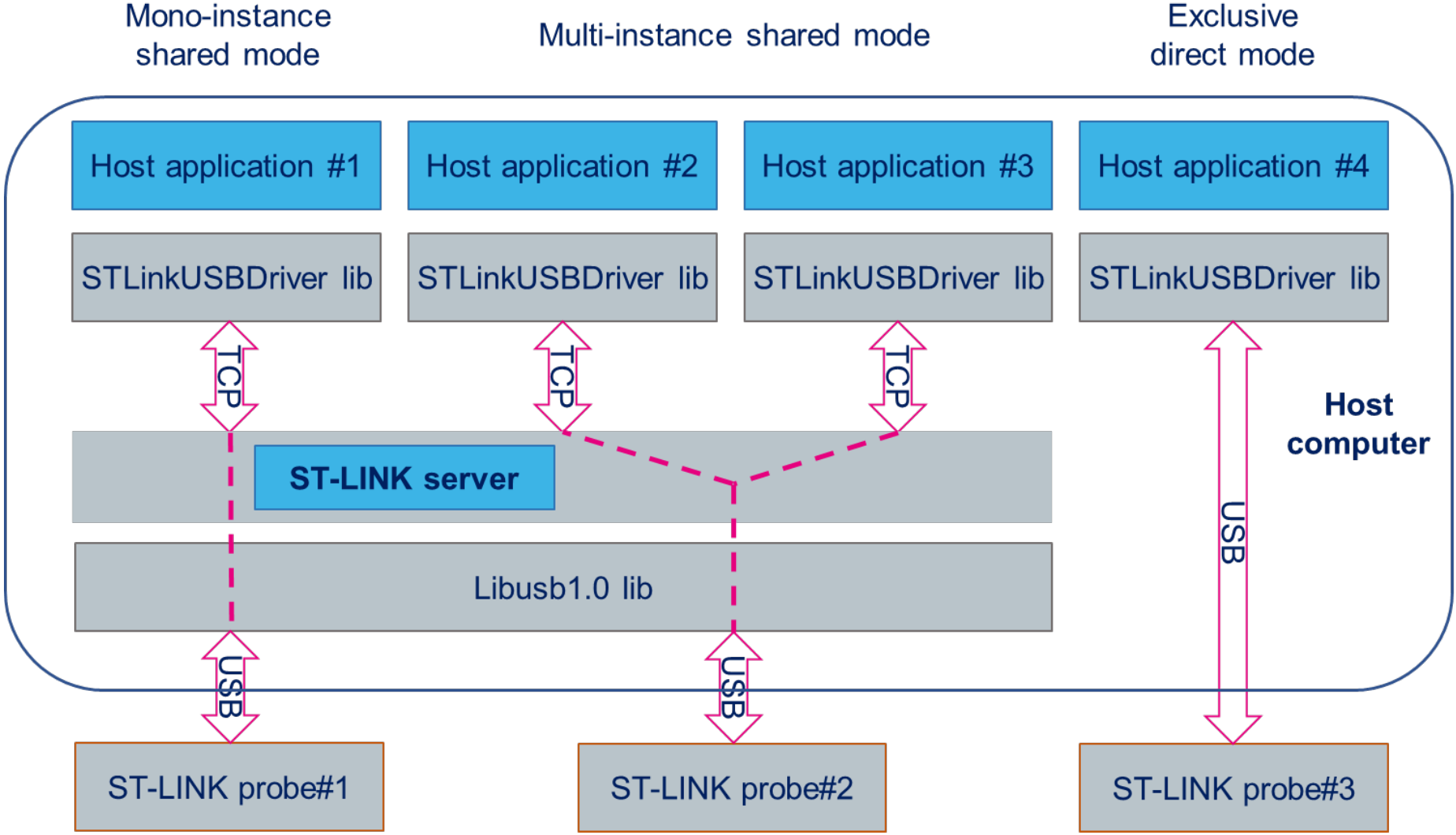 Figure 2. The ST-link server allows one or many applications to access the ST-Link programmer.
STM32CubeIDE
This IDE is based on Eclipse, not my favorite, but it works. The compiler and linker are included, so it is very convenient. I had some problems, though. At first, when I tried to debug an example, I received an error like this:
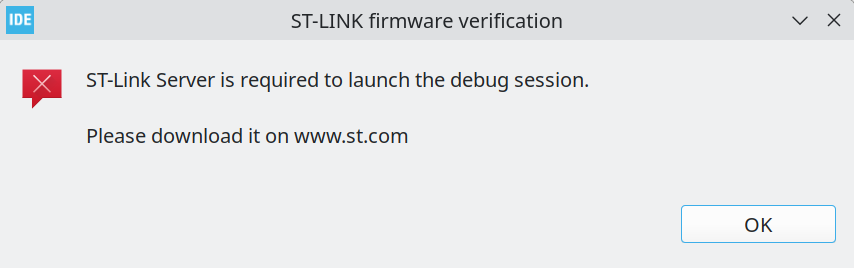 Figure 3. Error message shown when starting the debugger.
I installed the stlink-server, but the problem persisted. The confusing part is that I found a file referring to the server inside the STM32CubeIDE plugins folder: com.st.stm32cube.ide.mcu.externaltools.stlinkserver.linux64_2.3.200.202601091506.jar.
So I thought that, for some reason, Eclipse did not recognize that the server was installed. But to make the situation even more confusing, I ran the command manually to start the GDB server, and the debugger started normally.
/opt/stm32cubeide/plugins/com.st.stm32cube.ide.mcu.externaltools.stlink-gdb-server.linux64_2.2.400.202601091506/tools/bin/ST-LINK_gdbserver -p 61234 -l 1 -d -s -cp /opt/stm32cubeide/plugins/com.st.stm32cube.ide.mcu.externaltools.cubeprogrammer.linux64_2.2.400.202601091506/tools/bin -m 0 -g
Well, in the end, I realized the ST-Link server executable wasn’t in the system path. The problem was solved when I created a link in /usr/bin/ to the server’s executable.
So, now it works, but keep in mind that you will need a separate installation of the ST-Link server, and the program has to be in the system path.
Conclusion
After following those steps, I successfully built a basic STM32Cube toolchain. Now it is time to use it.
Enjoy Reading This Article?
Here are some more articles you might like to read next: